How to convert a PDF to Word without uploading it
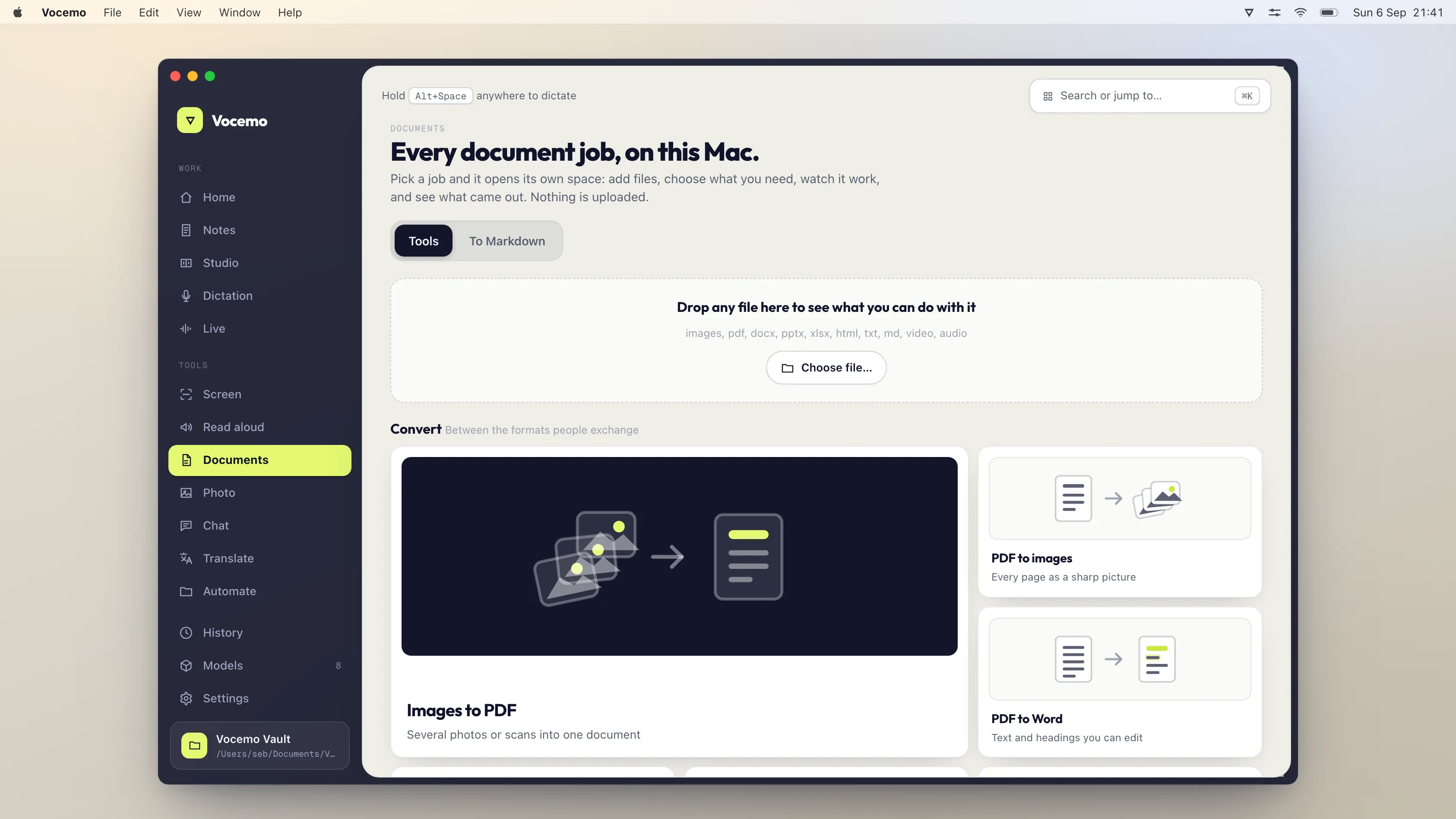
Every free online PDF converter works by uploading your document to a server. To convert a PDF to an editable Word file without that happening, use software that runs the conversion on your Mac. Vocemo does it for $15 a month across 21 document jobs; the online services charge roughly $7 to $9 a month and require the upload.
- The issue
- Online converters upload the document to a third-party server
- When it matters
- Contracts, statements, medical records, anything under NDA
- The local option
- Convert on your Mac, nothing transmitted
- Scanned PDFs
- Need text recognition first, which also runs locally
What actually happens when you use a free online converter?
You choose a file, the browser uploads it, a server converts it, and you download the result. The document sits on that server for as long as the retention policy says, which is typically an hour to a few days. The conversion itself is unremarkable. The upload is the part worth thinking about.
For a recipe or a train timetable this is fine. For an employment contract, a bank statement, a patient letter or anything covered by an NDA, you have moved a confidential document onto infrastructure you do not control, usually without your counterparty's knowledge.
How do you convert a PDF to Word entirely on a Mac?
You need software that does the conversion locally. The steps are the same as any converter, minus the upload.
- Open the app and drop the PDF onto it.
- Choose the Word output.
- The text layer is read, headings are preserved, and a .docx is written next to the original.
If the PDF is a scan, meaning a photograph of a page with no text layer, it has to be read with text recognition first. macOS has a very good text recognition engine built in, so this also happens on your machine with nothing downloaded.
What does each option cost?
Prices verified September 2026.
| Option | Uploads your file | Price | Notes |
|---|---|---|---|
| Vocemo | No | $15 a month, or $144 a year | 21 document jobs, not just this one |
| Smallpdf | Yes | Around $9 a month | Free tier is limited per day |
| iLovePDF | Yes | Around $7 a month | Free tier is limited per day |
| Adobe Acrobat | Depends on the tool used | Around $20 a month | Desktop conversion is local; web tools upload |
| PDF Expert | No | Around 5.99 euros a month, or 84.99 euros a year | Mac and iOS only, one time licence also sold |
| CloudConvert | Yes | Free allowance, then metered by minute | Every file is processed on their servers |
| Word's own PDF open | No | Included with Microsoft 365 | Layout often breaks on complex documents |
| macOS Preview and Pages | No | Free | Pages import handles simple documents only |
If you would rather this ran on your own Mac, that is what Vocemo does. Free for 7 days, then $15 a month for 3 Macs.
Download free for MacHow good is the conversion, honestly?
No PDF to Word conversion is perfect, local or cloud, and anyone claiming otherwise is selling something. PDF describes where marks sit on a page; Word describes a document's structure. Going backwards from one to the other is inference.
What survives reliably: body text, reading order, headings, and simple lists. What often does not: multi-column layouts, complex tables, footnotes, and anything positioned by hand. Expect to tidy the result rather than to use it untouched.
What else can you do to a PDF without uploading it?
The same argument applies to every other operation people reach for a website to do: merging, splitting, compressing, deleting or rotating pages, adding or removing a password, signing, and making a scan searchable. All of these are local computations. The only reason they are usually done on a website is that the website is convenient, not that the work needs a server.
How do you do it with software you already have?
Three routes that cost nothing, in the order worth trying.
- Microsoft Word itself. If you have Word, open the PDF directly with it. Word rebuilds an editable document. Say yes to the warning about the layout changing. This is the best free result for a text-heavy document.
- Pages. Open the PDF in Pages, then export as Word. Pages is stricter than Word and does less well on multi-column layouts, but it is already installed.
- Copy the text out. Open in Preview, select all, paste into a new document. You lose every bit of formatting and keep every word. For a document you were going to restyle anyway, this is often the fastest honest answer.
None of these uploads anything. The reason people end up on a website at all is usually that the first two produced a mess, which brings us to what actually goes wrong.
What survives conversion, and what does not?
Useful to know before you judge a tool, because some of this is not the tool's fault. A PDF does not contain paragraphs, tables or headings. It contains characters placed at coordinates. Every converter is reverse engineering structure that was thrown away when the PDF was made.
| Element | Usually survives | What goes wrong |
|---|---|---|
| Body text | Yes | Little, beyond the odd ligature or hyphen |
| Headings | Mostly | Come through as big bold text rather than heading styles |
| Simple tables | Often | Split cells and merged cells drift |
| Complex tables | Rarely | Become a grid of text boxes you cannot edit as a table |
| Two and three column layouts | Sometimes | Columns interleave, so sentences alternate between them |
| Footnotes | Rarely | Land as body text at the end of the page |
| Headers and footers | Varies | Repeat inside the body text at every page break |
| Images and charts | Yes | Vector charts sometimes flatten to a picture |
| Fonts | If installed | Substituted silently, which reflows everything |
| Forms and fields | No | Become static text |
The practical rule: a report, a letter or an article converts well. A scientific paper with two columns and footnotes, a financial statement with nested tables, or a designed brochure will need work whatever you use.
Is the PDF scanned, and does that change things?
It changes everything, and the check takes five seconds. Open the PDF in Preview and try to select a line of text. If it highlights, there is real text underneath. If you get a rectangle over a picture, the page is an image.
A scanned PDF has to go through text recognition before it can become a Word file at all. macOS has recognition built in, so this can happen locally. Accuracy on a clean 300 dpi scan of printed text is high. It falls off with low resolution, skewed pages, coloured or textured backgrounds, handwriting, and photographs taken at an angle.
One thing to watch: a recognised document looks like text and is not proofread. Numbers are where this bites, because a misread digit is invisible. Check any figure that matters against the original.
What should you check in the converted file?
- The page count and the ending. Truncation at a page boundary is common and easy to miss if you only look at the first screen.
- Every table. This is where conversion fails most often and most quietly.
- Any number you will rely on, especially in a scanned document.
- The reading order, by scrolling through quickly. Interleaved columns are obvious once you look and invisible if you do not.
- Fonts and pagination, if the document has to match the original layout.
How do you convert a 300 page document?
Long documents are where the free web tiers stop and the trade-offs get real.
- Most free web tiers cap file size, page count, or conversions per day, and a long document trips at least one of them. That cap is the business model, not a technical limit.
- Converting locally has no cap, but it does take time and memory. Expect a long document to take minutes rather than seconds, especially if recognition has to run.
- Split first if you only need part of it. Extracting the 20 pages you want and converting those is faster and gives a cleaner result than converting 300 and deleting.
- Convert once and edit the Word file, rather than going back and reconverting. Repeated round trips between formats degrade the document each time.
What do the upload services do with your file?
Read the privacy policy rather than the homepage, and look for four specific things: how long they keep the file, whether it is passed to another company for processing, whether your documents can be used to train models, and which country the servers are in. Reputable services answer all four, and some answer them well.
The reason to care is not that these companies are untrustworthy. It is that the answer stops mattering entirely if the file never leaves your Mac. A document that was never transmitted cannot be retained, shared, trained on or handed over.
Weigh it by document. A conference timetable is not worth a second thought. A signed contract, a medical letter, an unreleased set of accounts, a manuscript or anything belonging to a client is a different decision, and it is one a lot of people make on autopilot because the free converter is the first search result.
What about PDF to Excel, PowerPoint or Markdown?
Same job, different target, and the difficulty varies a lot by format.
- PDF to Excel is table extraction, and it is the hardest of the set. It works well on ruled tables with clear column separation and badly on tables held together by whitespace. Always reconcile a total after converting.
- PDF to PowerPoint mostly produces one slide per page with the content as a picture or a pile of text boxes. Useful for reusing a deck that was exported to PDF, close to useless as an editing starting point.
- PDF to Markdown has become the most useful of these, because Markdown throws away the layout on purpose. If what you want is the words with headings and lists intact, and you do not care about pagination, this is often a cleaner result than Word.
- PDF to plain text is the most reliable of all, for the same reason: there is almost nothing to get wrong.
Pick the format by what you are going to do next. People ask for Word out of habit when Markdown or plain text would have given them a cleaner document with less to fix.
Does the same apply in the other direction?
Going from Word to PDF is much easier, because you are throwing structure away rather than trying to recover it. Every Mac can do it without any extra software: from any app, choose File, then Print, then the PDF dropdown at the bottom left of the print dialog, then Save as PDF. Word, Pages and Google Docs all export directly too.
There is no good reason to upload a document to a website to make a PDF of it. That one is genuinely solved on the machine, and has been for twenty years.
Which route should you pick?
- Try Word or Pages first. Free, local, and good enough for most text documents.
- Use a local app when those produce a mess, when the PDF is scanned, when the document is confidential, or when you have more than a couple to do.
- Use a web converter for a one-off, non-sensitive document, when you have read what happens to the file, and when nothing local worked.
Whatever you use, check the tables before you send the result to anyone.
Questions
Can I convert a PDF to Word without uploading it?
Yes, and there are free ways. Microsoft Word opens a PDF directly and rebuilds it as an editable document, entirely on your machine. Pages can open a PDF and export to Word. A local app handles the cases those two make a mess of, including scanned documents, without the file leaving the Mac.
Why does the layout break when I convert a PDF?
Because a PDF does not store paragraphs, tables or headings. It stores characters at coordinates on a page. Every converter is reconstructing structure that was discarded when the PDF was created, so text-heavy documents convert well while multi-column layouts, footnotes and complex tables often do not.
How do I know if my PDF is scanned?
Open it in Preview and try to select a line of text. If the text highlights, there is a real text layer. If you get a selection rectangle over an image, the page is a picture and text recognition has to run before it can become a Word file.
Do free online PDF converters keep my files?
They store them for as long as their retention policy states, commonly one hour to a few days, and they must hold the file at least long enough to convert it. The relevant question is not whether they delete it later but whether you were willing to send it at all.
Can I convert a scanned PDF to Word?
Yes, but the scan has to be read with text recognition first, because there is no text layer to extract. macOS includes a strong text recognition engine, so this runs locally with nothing to download. Accuracy depends on the scan quality.
Is it safe to convert a contract or bank statement online?
It means transmitting a confidential document to a third party. Whether that is acceptable depends on your obligations, but if you would not email the document to a stranger, uploading it to a free web service is the same act with fewer questions asked.
Does converting a PDF to Word keep the formatting?
Partly, and this is true of every converter. Body text, reading order, headings and simple lists survive well. Multi-column layouts, complex tables and footnotes usually need manual repair afterwards.
What is the cheapest way to convert PDFs on a Mac without uploading?
If you only need it occasionally, Microsoft Word can open a PDF directly and converts locally, though it handles complex layouts poorly. For regular use, or if you also need merging, compression, signing and text recognition, dedicated local software is cheaper than a web subscription and does not involve the upload.
Sources
Every price on this page was read from the vendor's own page on the date shown above. Prices change; if you find one out of date, tell us and we will correct it.
Competitor prices in this article were checked in September 2026. Prices change; if you find one out of date, write to us and we will correct it.