How to make scans searchable on a Mac
macOS reads text in an image with Live Text, but it will not write that text back into a PDF. To make a scan searchable in Spotlight you need a tool that saves a text layer. Acrobat Pro costs $19.99 a month, ABBYY FineReader for Mac $69 a year, and Vocemo $15 a month.
- What macOS gives free
- Live Text reads words in an image, on screen, for copying
- What is missing
- A saved text layer, so Spotlight and Preview can search the scan
- What OCR tools cost
- Acrobat Pro $19.99 a month, FineReader for Mac $69 a year
- The local option
- OCR as one of 21 document jobs, $15 a month or $144 a year
What does a searchable PDF actually mean?
A PDF from a scanner or a phone camera is a stack of pictures. The words on it are shapes, not characters. Command F finds nothing, Spotlight finds nothing, and copying a paragraph is impossible, because as far as your Mac is concerned the page contains no text.
Text recognition, usually called OCR, reads those shapes and works out the characters. A searchable PDF is the original picture with the recognised text stored invisibly behind it, lined up with where each word appears. The page looks identical. Selecting, copying, finding and indexing all start working. Nothing about the visible scan changes, which is why a searchable PDF is still valid as a record.
Can macOS make a scan searchable on its own?
Partly, and this trips people up. macOS has a very good text recognition engine built in. Live Text lets you hold the pointer over words in a photo in Preview, Photos or Quick Look, then select, copy, look up or translate them. It works well, it is free, and it is on every reasonably recent Mac.
What it does not do is write the result anywhere. Live Text recognises on screen, on demand. The moment you close the window, the recognition is gone. Apple's own Preview guide has no command that adds a text layer to a scanned PDF, and the page about being unable to select text in a PDF offers only two remedies: switch on the Text Selection tool, or enter the document's password.
So for copying a phone number off a photo, macOS is complete. For an archive of 400 scanned invoices you want to search next year, it is not.
How do you make a scanned PDF searchable on a Mac?
The shape of the job is the same in every tool.
- Point the tool at the scanned PDF, or at a photo of a page.
- Choose the language or languages on the page. Getting this wrong is the single most common cause of bad results.
- The tool recognises each page and writes a new PDF with the text layer behind the image.
- Check one page: press Command F and search for a word you can see.
Done locally, on an Apple silicon Mac, a typical page takes well under a second, so a 40 page scan finishes while you look at it. Done in a browser, the file is uploaded, queued, processed and downloaded, which is slower and involves sending the document away.
If your scans are receipts or statements and you want figures rather than sentences, recognition is only the first step. Pulling the rows into a spreadsheet is a separate job, covered in turning a bank statement into a CSV.
Does Spotlight search inside PDFs?
Yes, for the text layer. Spotlight indexes the words inside a PDF, so a searchable document turns up when you search for a phrase in it, and Preview's own Command F finds it too. A scan with no text layer is findable only by its file name and the metadata around it, which is why a folder of "Scan 2019-04-11.pdf" files is effectively a filing cabinet with the labels torn off.
Adding a text layer to that folder is the single highest value thing you can do to an archive of old scans, and it is a one-off job.
How accurate is OCR, honestly?
Good enough to search, not good enough to trust blindly. On a clean 300 dpi scan of printed text in a language the engine knows, accuracy is high enough that you will rarely notice an error while searching. Accuracy falls with photographs taken at an angle, low contrast, creased paper, faint till receipts, unusual fonts and heavy tables.
Handwriting is a different problem again. Modern engines read tidy handwriting reasonably and messy handwriting badly, and no tool on any platform is dependable there.
The practical rule: OCR is for finding documents, not for replacing them. Keep the scan. Search the text layer. Read the picture when the number matters.
What do the OCR tools cost?
Prices verified September 2026, from each vendor's own pricing page.
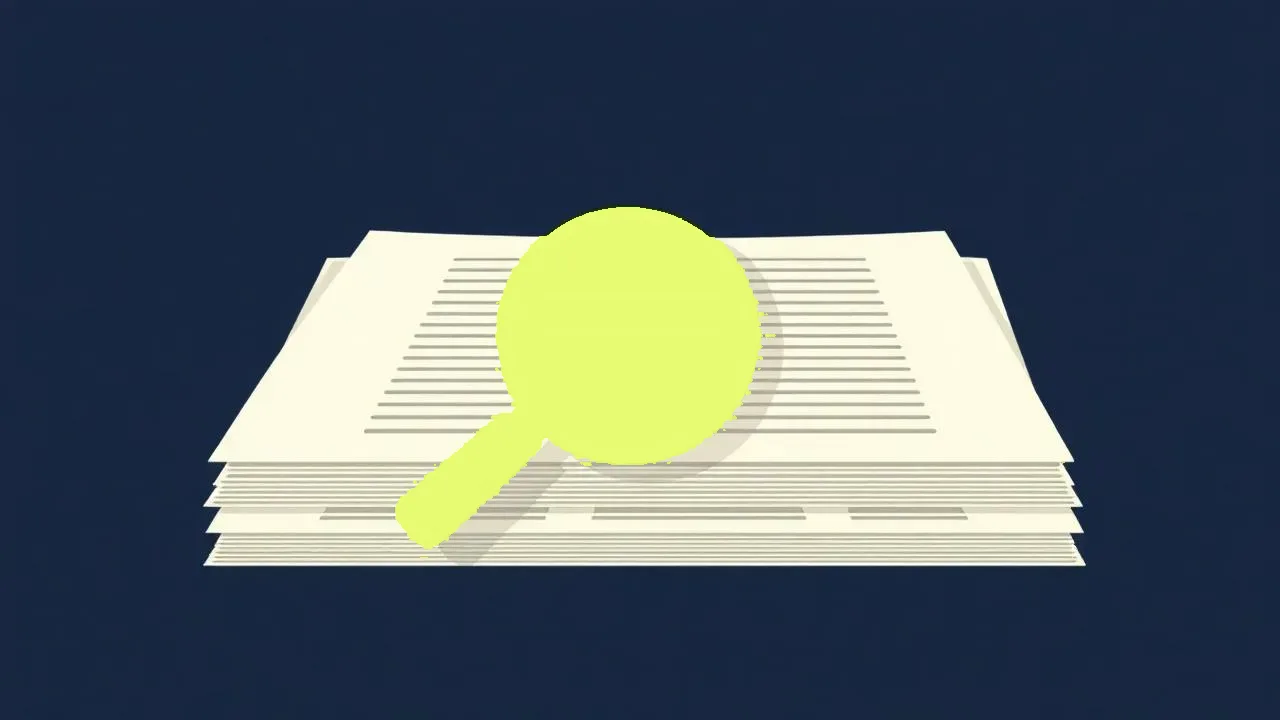
| Option | Runs on your Mac | Saves a text layer | Price |
|---|---|---|---|
| macOS Live Text | Yes | No, on-screen copying only | Free |
| Vocemo | Yes | Yes | $15 a month, or $144 a year |
| Adobe Acrobat Pro | Yes in the desktop app | Yes | $19.99 a month, annual billed monthly, or $239.88 a year |
| ABBYY FineReader PDF for Mac | Yes | Yes | $69 a year, or $186 for three years |
| DEVONthink Pro | Yes | Yes, on import into a database | $199 once, two seats, one year of updates |
| Nitro PDF Standard | Subscription, desktop app | Yes | $15 per user a month, or $180 a year |
If you would rather this ran on your own Mac, that is what Vocemo does. Free for 7 days, then $15 a month for 3 Macs.
Download free for MacTwo notes on that table. DEVONthink's Standard edition at $99 does not include OCR at all: the scanner integration and OCR row starts at Pro, which is $199, with Server at $499. And PDFpen, the Mac favourite for years, is now Nitro PDF Pro; the Mac app is free to download from the Mac App Store with in-app purchases, while Nitro's published per-seat pricing is the $15 a month plan above.
What the local option does not do
Being specific here saves you a refund request.
- It does not correct the recognised text for you. There is no proofreading view where you fix misread words side by side with the image. ABBYY FineReader has one, and for documents you intend to republish, that is worth the $69 a year on its own.
- It does not rebuild the layout. Recognition gives you searchable text behind the picture, not a reflowable document with the original columns, tables and styles preserved. That is FineReader's and Acrobat's specialty.
- It is not a document manager. No database, no tagging, no automatic filing, no smart rules. DEVONthink is the tool for an archive you will live in for a decade.
- It does not edit the PDF afterwards. You cannot retype a misread line inside the page.
- It does not read handwriting reliably, and neither does anything else.
- It runs on Apple silicon Macs on macOS 13 or later. No Intel Macs, no Windows, no iPad, no web version.
When is a paid OCR tool worth it, and which one?
Match the tool to the actual job.
- Copying a few words off a photo. Live Text, free, already installed. Buy nothing.
- Making a pile of scans findable, privately. A local tool that writes a text layer. This is the common case and it is what Vocemo covers, at $15 a month alongside 20 other document jobs.
- Turning scans back into editable, laid-out documents. ABBYY FineReader PDF for Mac, $69 a year. Its own pricing page notes the Mac version has the same recognition as the Windows one but a smaller PDF feature set.
- Editing the PDF as well as recognising it. Adobe Acrobat Pro at $19.99 a month, or PDF Expert if you want a Mac app rather than a subscription.
- Building a searchable archive with tagging and rules. DEVONthink Pro, $199 once with two seats and a year of updates.
The thing to notice is that only the first of those needs to leave your Mac, and it does not. Every serious OCR engine for macOS runs on the machine. Uploading a scan to a website is a habit rather than a requirement, which is the same point made about on-device AI on a Mac generally.
How long does it take, and how much does it download?
Recognition is fast on Apple silicon: a page of printed text takes a fraction of a second, so a 50 page scan is done in under a minute. A local tool needs its recognition model on disk, which is why Vocemo downloads a model only when a feature first needs one and shuts it down after 120 seconds of idle time. The installer itself is 5.5 MB, because no models ship inside it.
If you want to test recognition on your own scans first, there is a 7 day free trial with no account to create, and a licence covers three Macs.
Questions
Can macOS do OCR for free?
It can recognise text on screen for free with Live Text, in Preview, Photos and Quick Look, so you can select and copy words out of a photo. It will not save that text into the PDF, so the scan stays unsearchable in Spotlight. For that you need a tool that writes a text layer.
How do I make a scanned PDF searchable on a Mac?
Run the file through a text recognition tool, choose the right language for the page, and save the result as a new PDF with the recognised text stored behind the image. Then open it and press Command F to check that a word you can see is now findable. On an Apple silicon Mac this runs locally and takes under a second a page.
Does Spotlight search text inside PDFs?
Yes, if the PDF has a text layer. Spotlight indexes the words inside the document, so searching a phrase brings the file up. A scan without a text layer can only be found by its file name, which is why old scan folders feel impossible to search.
Is Adobe Acrobat OCR done in the cloud or on my computer?
The desktop Acrobat application recognises text on your own machine. Adobe's browser based tools work on a file you have uploaded. If keeping the document local matters, check which of the two you are actually using, because they share a name and a brand.
Which OCR software is best for Mac?
It depends on the job. For copying a few words, macOS Live Text is free and enough. For making a pile of scans searchable, any local tool that writes a text layer will do. For converting scans back into laid-out editable documents, ABBYY FineReader PDF for Mac at $69 a year is the specialist, and for a tagged archive DEVONthink Pro at $199 is.
Can OCR read handwriting?
Tidy handwriting, sometimes. Messy handwriting, not dependably, and this is true of every tool rather than a limitation of one. Treat handwritten pages as images you have filed, and type the important details yourself rather than trusting a recognised version of them.
Sources
Every price on this page was read from the vendor's own page on the date shown above. Prices change; if you find one out of date, tell us and we will correct it.
Competitor prices in this article were checked in September 2026. Prices change; if you find one out of date, write to us and we will correct it.