Vocemo
On-device AI · for Mac

AI that runs on your Mac, not in the cloud.

Vocemo types what you say, writes up your meetings, reads things aloud, translates, and sorts out your PDFs. All of it happens on your own Mac. Your recordings and files are never uploaded, and it keeps working with the Wi-Fi switched off.

Download for Mac See the price Free for 7 days · 5.5 MB · macOS 13 or newer
5.5 MBThe download. Tiny, because the AI models arrive only when you need them.
21Things it does with documents, like PDF to Word or receipts to a spreadsheet.
0Files, recordings or words uploaded anywhere. It all stays on your Mac.
1Subscription instead of five. No credits, no per-minute charges.

Opening it the first time: macOS will block it and offer only "Move to Trash", because Vocemo is not notarised by Apple yet. Click Done, then open System Settings → Privacy & Security, scroll to Security, and click Open Anyway. Once only. Full steps.

Screenshots

What it actually looks like.

Five real screens from the app. Nothing here is a drawing of something that doesn't exist yet.

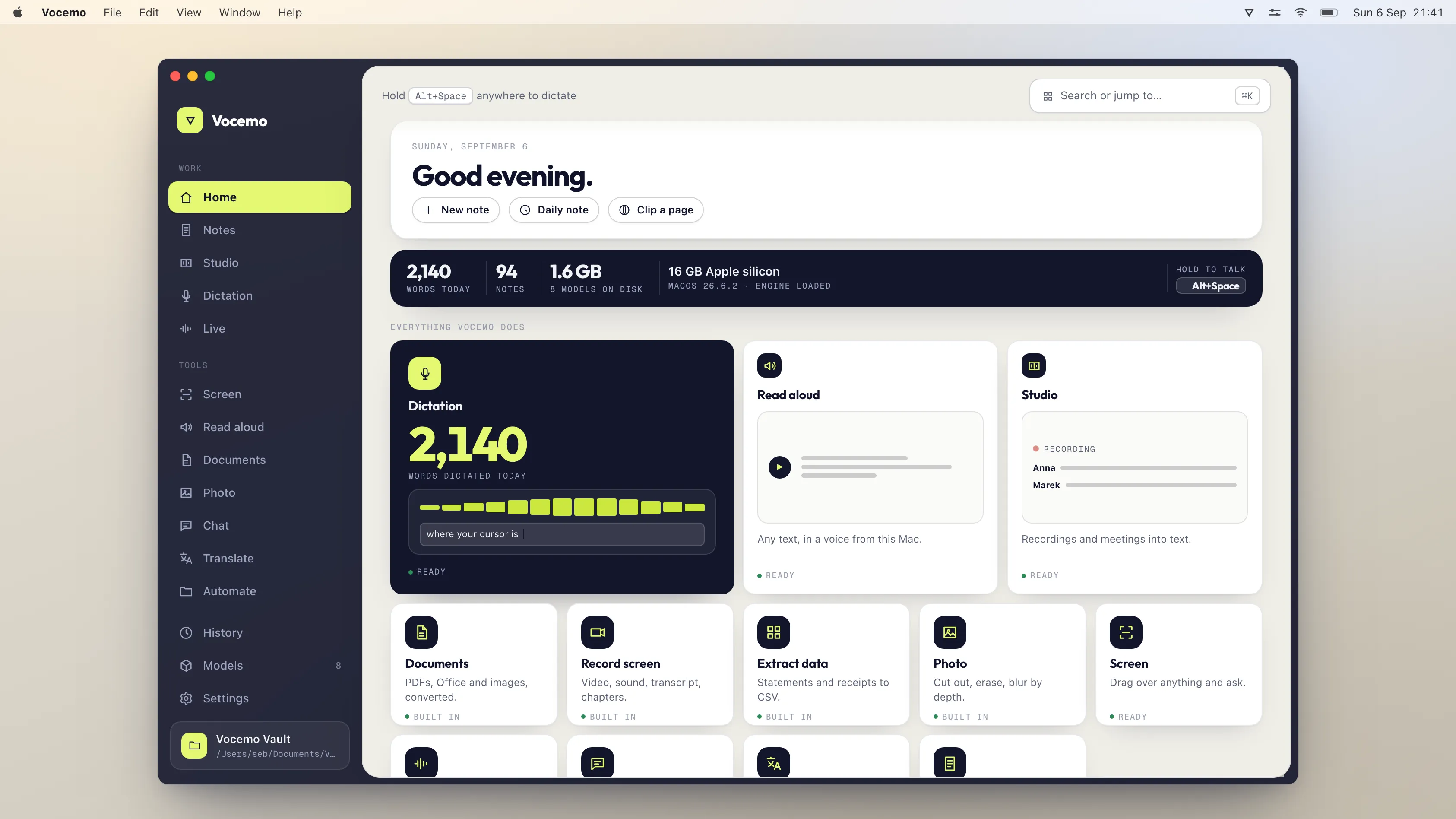
The Vocemo home screen, showing buttons for a new note, a daily note and clipping a page, a bar reading 2,140 words today and 94 notes, and a card for each feature.
The main screen

Everything in one place.

Every feature is a card, and each one tells you whether it is ready to go or still needs a quick download. Nothing is locked off to sell you a bigger plan.
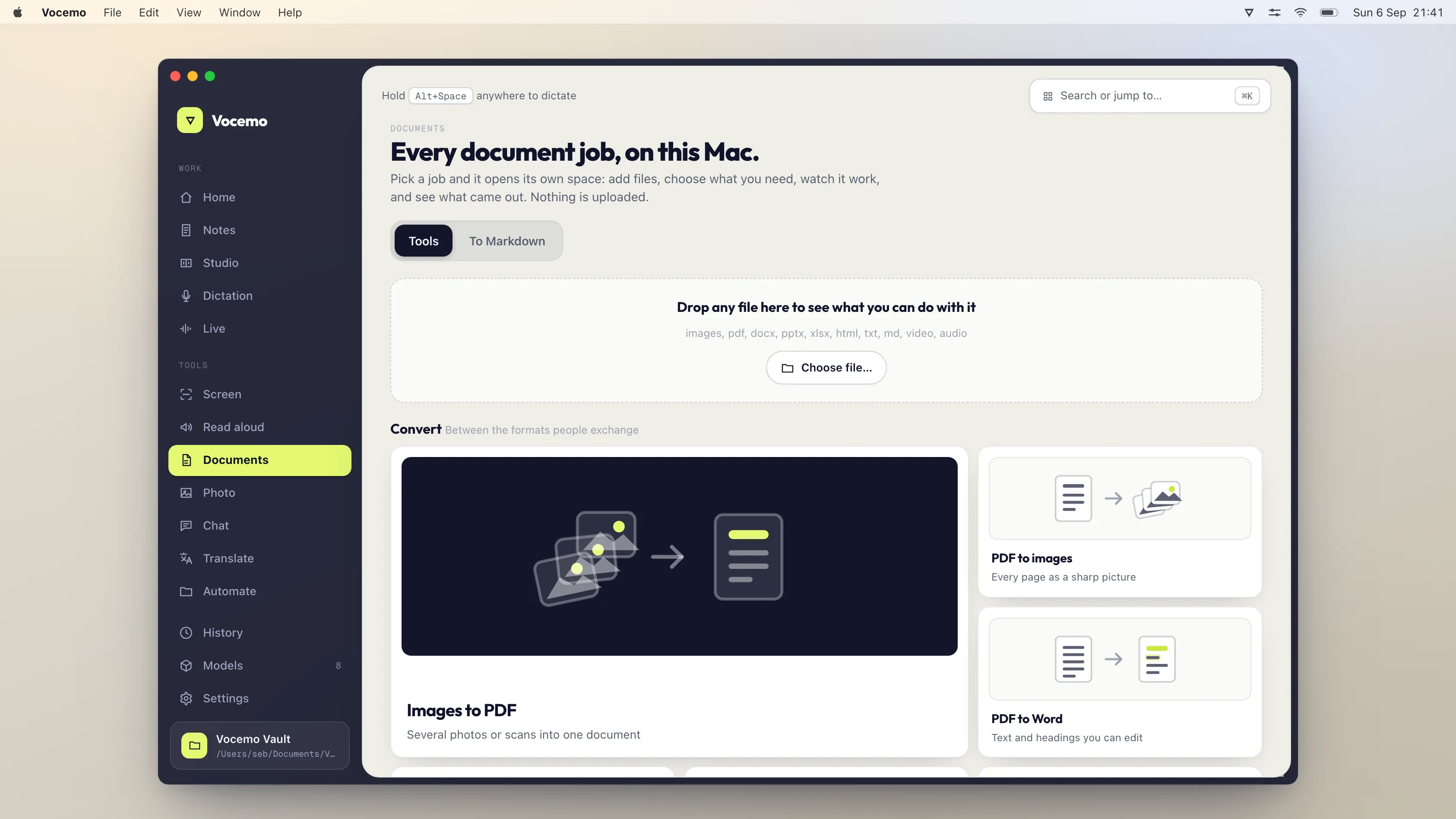
The Documents screen with a drop area for files and picture cards for jobs like Images to PDF, PDF to images and PDF to Word.
Documents

Drop in a file and it shows you the options.

Drag a PDF, a photo or a Word file onto the window, and Vocemo leaves you only the jobs that make sense for it.
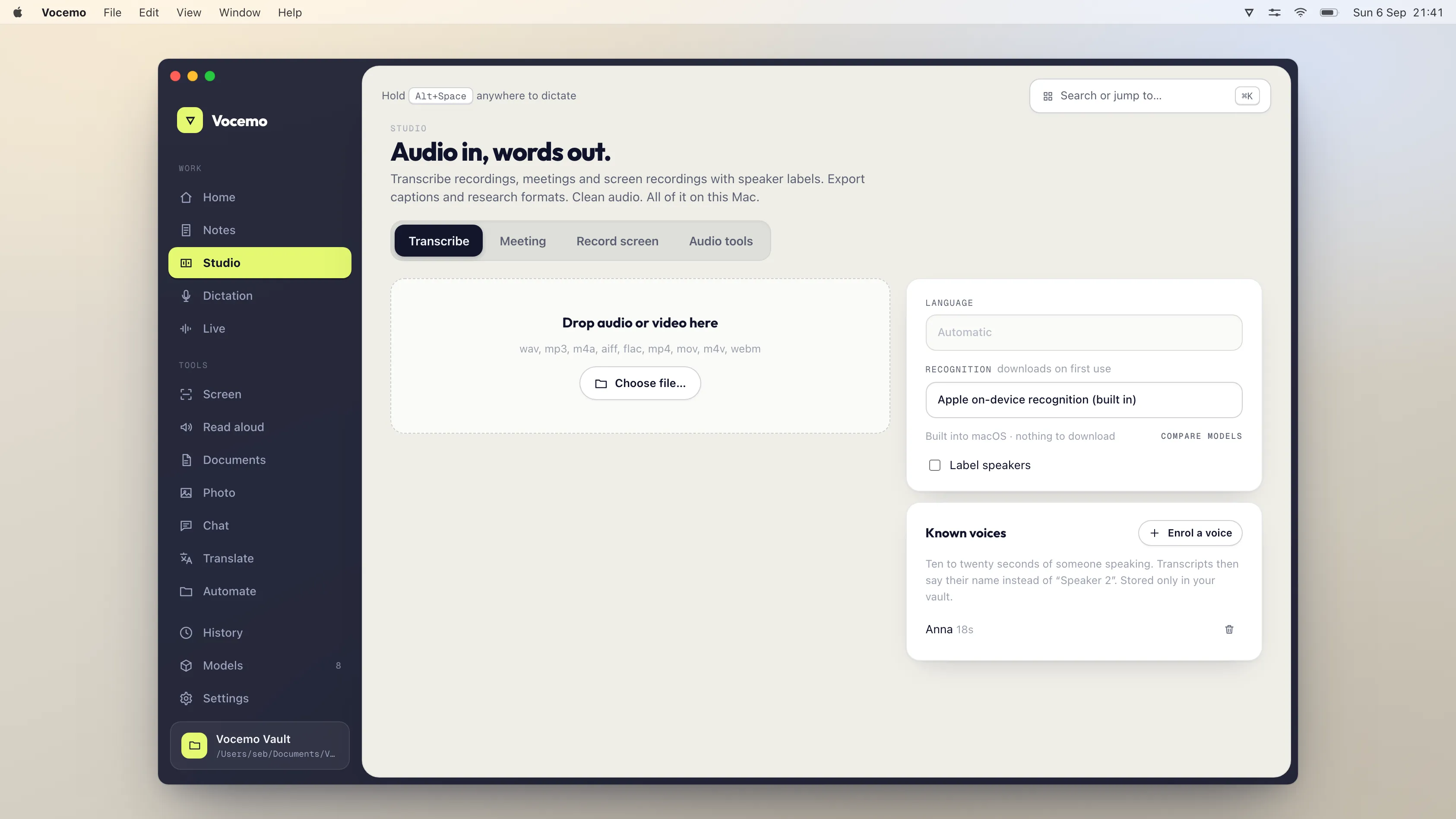
The Studio screen, headed Audio in words out, with tabs for Transcribe, Meeting and Record screen, and a drop area for audio and video.
Meetings

Drop in a recording.

You get the text back, with names against who said what.
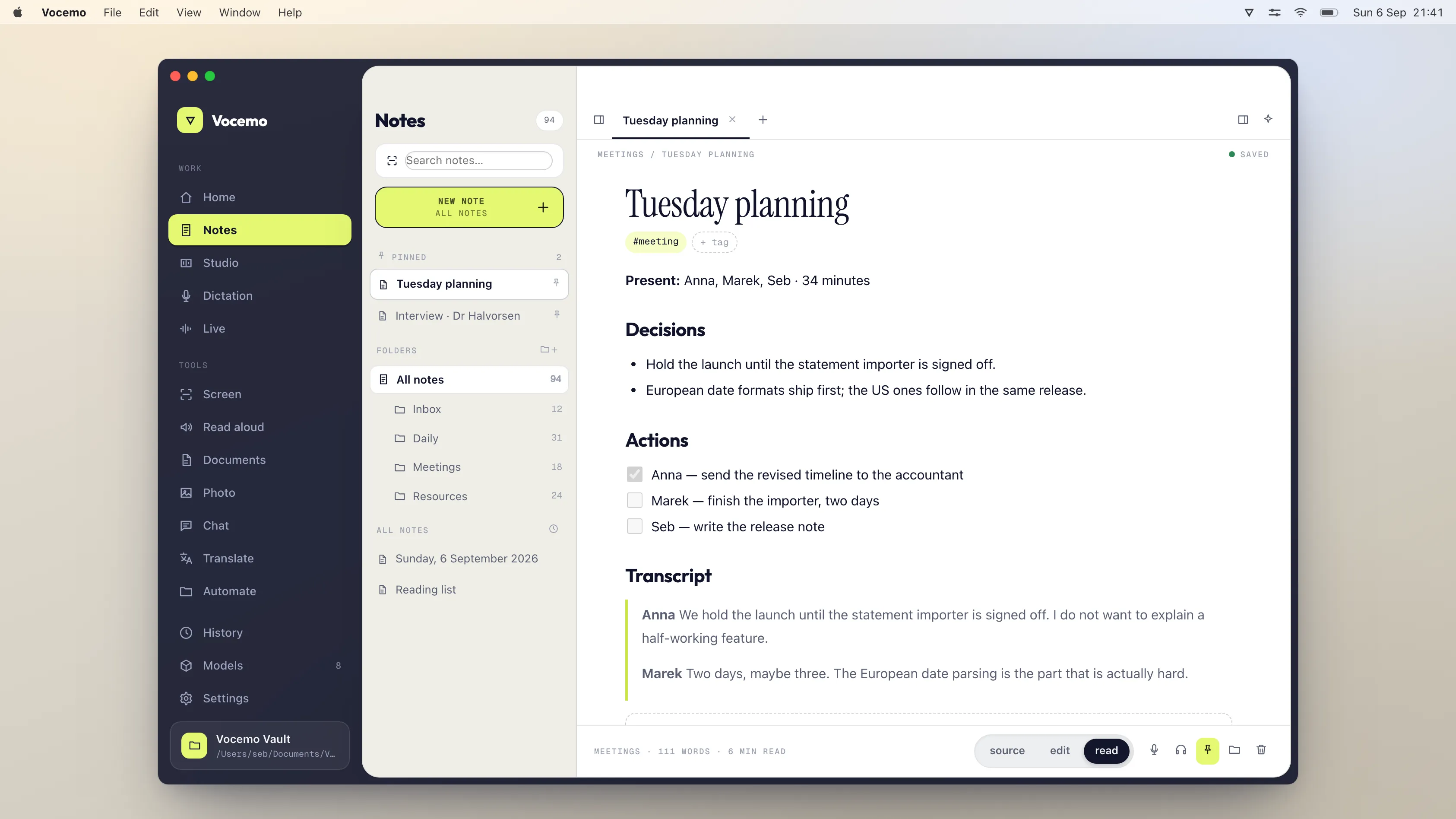
The Notes screen showing folders for Inbox, Daily, Meetings and Resources, with a meeting note open.
Notes

Saved as ordinary files.

In a folder you pick, so you can still open them in anything else.
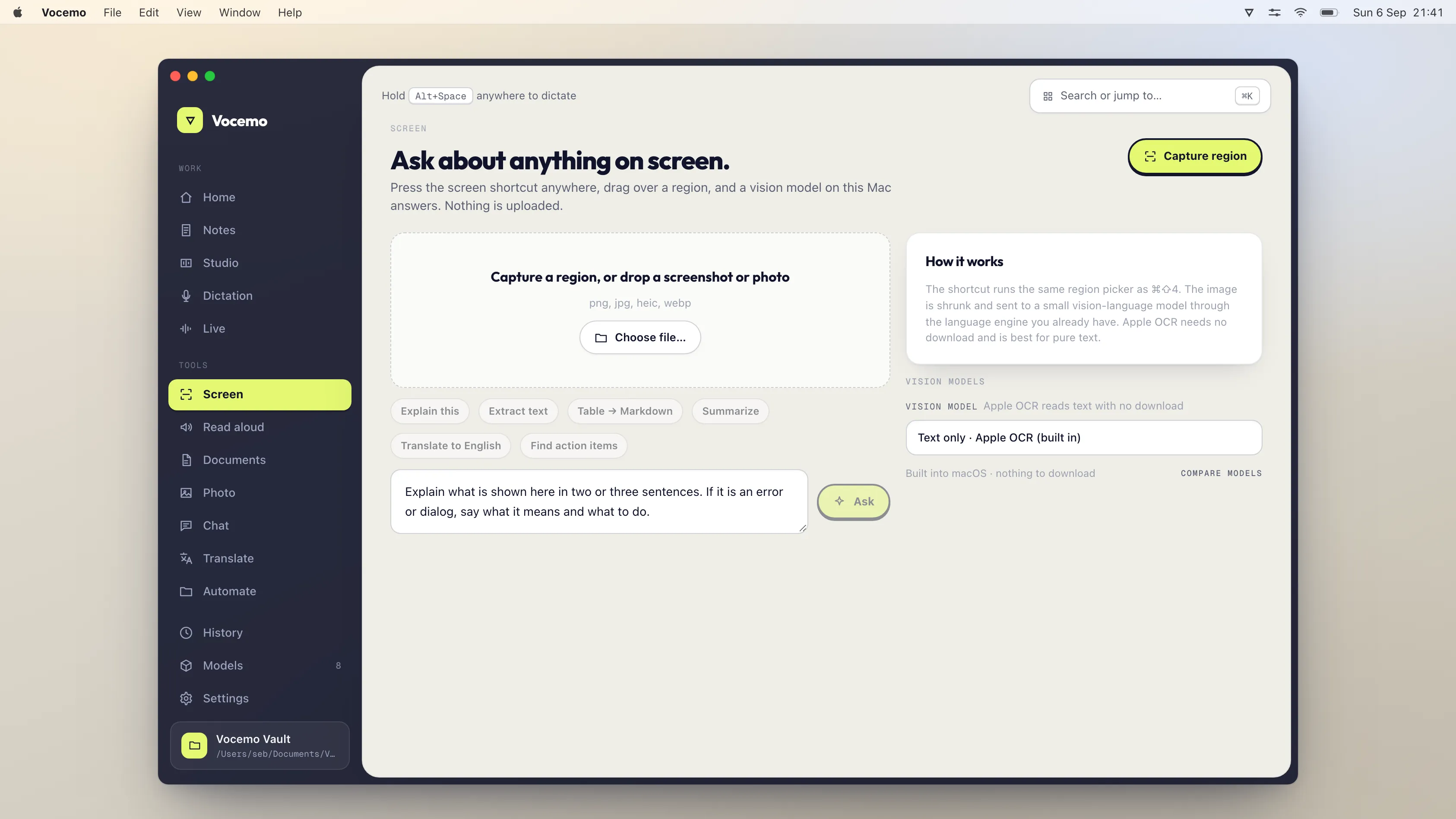
The Screen view, where you select part of your display and ask a question about it.
Your screen

Point at something and ask.

Draw a box around any part of your screen and ask about it. The answer is worked out on your Mac, and the picture is thrown away straight after.

What it does

Six everyday jobs, one app.

Most people pay for these separately: a dictation app, a meeting notetaker, a PDF website, a translator. Vocemo does all of them, and does them on your Mac instead of on someone else's computer.

Voice typing

Hold a key, talk, and it types.

Works in any app on your Mac — email, Slack, Word, your browser. It writes numbers as digits, learns words you use a lot, and tidies up the "ums" before it types. Much faster than typing, and nobody hears the recording but your Mac.

Meetings

Get your meeting written up.

Record a call, or drop in a recording you already have. Vocemo writes down what was said, works out who said it, and gives you a short summary with the decisions and the to-dos. No robot joins your call asking to record.

Read aloud

Have things read to you.

An article, a PDF, your own notes. Pick a voice and a speed, and listen instead of reading.

Translate

Translate without the internet.

Text and whole documents. Nothing gets sent to a translation website to be read.

Your screen

Ask about whatever is on your screen.

Draw a box around a chart, an error message or a form, and ask what it means. Vocemo can also put live subtitles on anything playing on your Mac, so a video in another language becomes text you can follow.

Documents · 21 jobs

The stuff you normally Google a website for.

Join PDFs together, split them up, make them smaller, add a password, sign one, or turn a PDF into an editable Word file. Make a scan searchable. Turn a bank statement or a pile of receipts into a spreadsheet. All on your Mac — so you are not uploading your bank statement to a free website and hoping for the best.

No setup

You don't have to understand any of it.

There are no models to choose, no settings to get right and no account to make. Vocemo checks what your Mac can handle and picks for you, downloads what a feature needs the first time you use it, then shuts it down again so your Mac stays fast.

Privacy

What leaves your Mac, and what doesn't.

Plenty of apps say they are "private". Here is the actual list, so you can check it rather than take our word for it.

Goes online
  • Downloading an AI model. The first time you use a feature that needs one. After that the feature works offline.
  • Checking your subscription, once a day. It sends an anonymous ID for your Mac, your computer's name and your licence key. That is the whole message.
Never leaves your Mac
  • Your recordings. Dictation, meetings and subtitles are all handled on your Mac.
  • Your documents. PDFs, bank statements, receipts and scans stay on your disk.
  • Your words. Notes, transcripts and translations are not sent anywhere.
  • Your screen. A region you ask about is answered on your Mac, then deleted.
  • You. No account, no sign-in, no tracking, no ads.
Price

One price. Everything included.

No basic and pro versions, no charge per minute of audio, no credits that run out.

Save 20% Yearly $12 / month Billed $144 once a year
Monthly $15 / month Billed monthly, cancel anytime
  • Voice typing in any app on your Mac
  • Meeting and recording transcripts, with names
  • 21 document jobs, from PDF to Word to receipts as a spreadsheet
  • Read aloud, translation, live subtitles, screen questions
  • Screen recording, with the words and chapters written up
  • Every update, on up to three Macs
Try it free for 7 days No account needed. Cancel in one click.
Questions

Things people ask.

What does "on-device AI" mean?
It means the AI runs on your own Mac rather than on a company's servers. Most AI apps send your recording or your file off to be processed somewhere else, then send the result back. Vocemo does the work on your Mac's own chip, so your audio and files never go anywhere.
Do my files or recordings get uploaded?
No. Vocemo only goes online for two things: downloading an AI model the first time you use a feature that needs one, and checking once a day that your subscription is still active. That check sends an anonymous ID for your Mac, your computer's name and your licence key — nothing else, and never anything you have written, said or opened.
Does it work without internet?
Yes. Once the models have downloaded, everything works with the Wi-Fi off, including on a plane. Your subscription is remembered for 14 days offline, so a fortnight without a connection will not lock you out.
Why is the download only 5.5 MB? Other AI apps are huge.
Because the AI models are not inside the download. Vocemo fetches only the models for the features you actually use, keeps them in a folder on your Mac, and shuts them down after two minutes of sitting idle so they stop using memory. Apps that pack everything in are hundreds of megabytes whether you use those parts or not.
macOS blocked it and only offered "Move to Trash". What now?

That is macOS refusing anything Apple has not notarised, and Vocemo is not notarised yet — we are in the middle of sorting that out. It is not a warning about the app itself; you get the same dialog for any new independent Mac app.

On macOS 15 and later there is no right-click shortcut any more. Here is the whole thing:

  1. In the dialog, click Donenot Move to Trash.
  2. Open System Settings, then Privacy & Security.
  3. Scroll down to Security. You will see a line saying Vocemo was blocked. Click Open Anyway, and confirm with Touch ID or your password.
  4. Open Vocemo again and click Open.

You do this once. If the line is not there, try opening Vocemo again first — it only appears for a while after a blocked attempt.

If you would rather check the download before running it, its SHA-256 is 778b19650c933ecd508ccf59e559752ff8b48e4172cdf870442fe0d7113c9de8.

Will it run on my Mac?
If it is an Apple silicon Mac — an M1 or newer — running macOS 13 or later, yes. Vocemo looks at how much memory your Mac has and only offers models it can actually run, so you cannot accidentally pick one that gives up halfway through a long recording.
Do I need to know anything about AI to use it?
No. There is nothing to configure and no model to choose. Open the app, hold a key and talk, or drag a file onto it. Vocemo works out the rest.
What happens to my files?
They stay where they are. Converted files appear next to the originals, and transcripts next to the recording. Vocemo does not swallow your documents into a library, and if you uninstall it, everything it made for you stays on your disk.
Can I use it on more than one Mac?
Yes, up to three. The same licence works on each, and you can free one up when you replace a machine.