Everyday PDF jobs on a Mac, without uploading the file
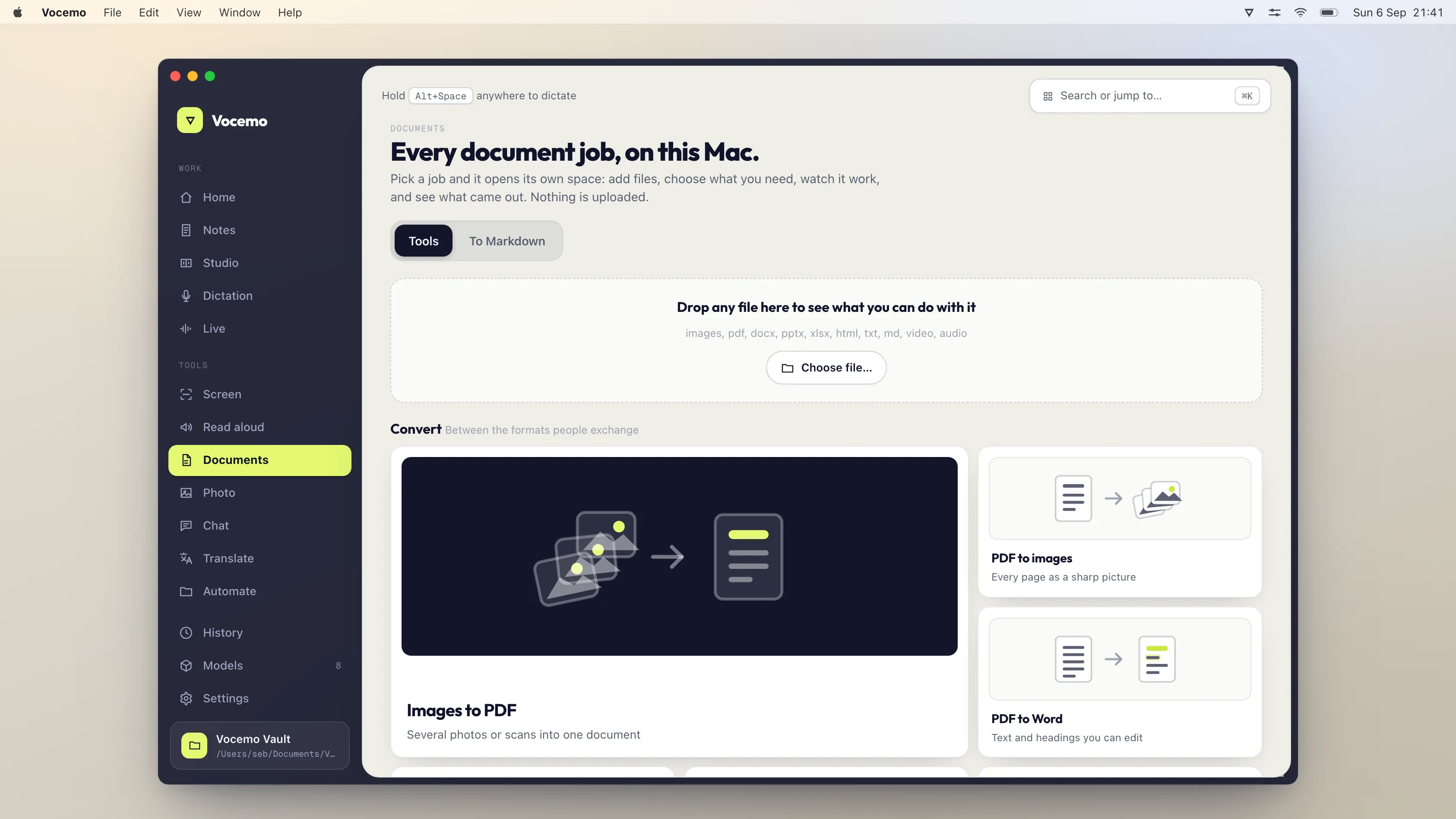
Merging, splitting, rotating, compressing, password protecting and signing a PDF are all local computations. macOS Preview does most of them free. Web tools such as Smallpdf ($10 a month) and iLovePDF ($5 a month billed annually) upload your file first. Vocemo runs 21 document jobs on your Mac for $15 a month.
- Free on every Mac
- Preview merges, deletes, rotates, signs and password protects
- Where Preview stops
- Compression control, batch jobs, splitting into many files
- What the websites charge
- Smallpdf $10 a month, iLovePDF $5 a month billed annually
- The local option
- 21 document jobs on your Mac, $15 a month or $144 a year
Do you have to upload a PDF to merge, split or compress it?
No. Every one of those jobs is arithmetic on a file you already have. Merging copies page objects from one document into another. Splitting writes a subset of pages to a new file. Rotating changes one number per page. Compressing re-encodes the images inside. Adding a password encrypts the contents with a key derived from what you typed. None of it needs a server, a network connection or an account.
The reason most people do these things on a website is that the website is convenient. You type "merge pdf", the first result works in ten seconds, and nothing on the page mentions that your file has just been sent to someone else's computer. For a train timetable that is fine. For a signed contract, a tenancy agreement, a payslip or a medical letter, you have moved a private document onto infrastructure you do not control, and usually without asking the other party.
Retention policies vary. Most of the big services delete uploads within a few hours. The point is that the upload happened at all, and that you cannot verify the deletion.
What can macOS Preview already do for free?
More than most people realise, and it is worth being honest about this before recommending anything paid. Preview is on every Mac, and Apple documents each of these in the Preview User Guide.
- Merge two PDFs. Open one, show the thumbnail sidebar (View, then Thumbnails), and drag the second PDF's icon into the sidebar.
- Delete, reorder and move pages. Select thumbnails, press Delete, or drag them between two open documents.
- Rotate and crop pages. Select the thumbnails and use the rotate button.
- Extract a few pages. Select the thumbnails you want and drag them to the Desktop. You get a new PDF.
- Add a password. File, then Export, then the Permissions button. You can require a password to open, to print or to change the document.
- Remove a password from a document you can already open. Open it with the password, then export a copy without encryption.
- Sign a document. The markup toolbar holds a signature you create once with the trackpad, the camera or an iPhone, then place on any page.
- Reduce the file size. File, then Export, then the Quartz Filter menu, then Reduce File Size.
That covers a large share of what the PDF websites sell. If Preview is enough for you, use Preview. A subscription you do not need is a bad deal at any price.
Where does Preview run out?
Four places, and they are the reason the paid tools exist.
- Compression. Preview's Reduce File Size is a single fixed filter with no quality setting. It can turn a 40 MB scan into a 2 MB one, and it can also turn a clean document into something blurry, with no preview and no dial to turn.
- Splitting. Dragging thumbnails to the Desktop works for one extract. Cutting a 300 page bank statement into one file per month is a long afternoon.
- Batches. Preview handles one document at a time. Forty invoices to compress is forty rounds of the same clicks.
- Text recognition. Preview can read words in a photo on screen with Live Text, but it cannot save that text into a scanned PDF so Spotlight can find it.
How do you split a PDF on a Mac without a website?
Three routes, in order of effort.
- Preview, for one or two extracts. Select thumbnails, drag to the Desktop.
- Automator or a shell script, if you are comfortable with either. macOS ships the parts. This is free and fiddly, and it is genuinely the right answer for a one-off.
- A local app, if you do this weekly. You give it a page range or a split point and it writes the files next to the original, with no upload and no queue.
The same three routes apply to compressing, rotating and password work. The decision is about how often you do it, not about whether it is technically possible offline.
How do you compress a PDF without wrecking it?
Almost all of a large PDF's weight is images. Compression means re-encoding those images at a lower resolution or a lower JPEG quality. Text and vector drawings are already tiny and are not what made your file 40 MB.
So the question to ask of any compressor is what it does to the pictures, and whether you can see the result before you keep it. A scan of a printed page survives heavy compression well, because the page is mostly white. A brochure with photographs does not. Check the output at 100% zoom before you delete the original, and keep the original until you have.
This is also where the tests we ran on our own tool caught something ugly: a compressor can report the correct page count and a much smaller file while quietly shrinking every page into the corner of a blank sheet. Look at the pixels, not at the file size.
What do the paid options cost?
Prices verified September 2026, from each vendor's own pricing page.
| Option | Uploads your file | What you get | Price |
|---|---|---|---|
| macOS Preview | No | Merge, delete, rotate, extract, sign, password, reduce size | Free |
| Vocemo | No | 21 document jobs, including all of the above | $15 a month, or $144 a year |
| Smallpdf Pro | Yes | 30+ web tools, unlimited downloads | $10 a month per user, billed annually |
| iLovePDF Premium | Yes | All its tools, unlimited processing | $5 a month billed annually, or $9 billed monthly |
| Adobe Acrobat Pro | Desktop app does not, the web tools do | Full PDF editor | $19.99 a month, annual billed monthly, or $239.88 a year |
| PDF Expert | No | Mac PDF editor with text recognition | $79.99 a year, or $139.99 once for the Mac version |
If you would rather this ran on your own Mac, that is what Vocemo does. Free for 7 days, then $15 a month for 3 Macs.
Download free for MacAdobe also sells Acrobat Standard at $14.99 a month, annual billed monthly, and Acrobat Standard for teams at $16.99 a month per licence. Smallpdf's team tier is $8 a month per seat. iLovePDF's free tier gives access to what it calls its essential tools with limited document processing, so light users may never pay it anything.
What the local option does not do
Stating this plainly is more useful than a feature list.
- It is not a PDF editor. Vocemo will not let you retype a paragraph inside a PDF, move a logo or edit a table in place. Acrobat and PDF Expert do that and it is the main reason to buy one of them.
- It does not fill in or build forms. Preview fills forms free; Acrobat builds them.
- It is not an annotator or a reader. No highlighting, no sticky notes, no reading view.
- It does not redact. Removing text so it cannot be recovered is a specific job with real legal consequences, and it is not one of the 21.
- Signing means placing a signature, not a tracked e-signature workflow with an audit trail and countersigning. If you need the audit trail, you need a signing service.
- It runs on Apple silicon Macs on macOS 13 or later. No Intel Macs, no Windows, no iPhone, no web version, and no link you can send someone.
- Nothing syncs. Files stay on the machine that made them, which is the point, and also a limitation if you wanted the file on your phone.
When is a website actually the right answer?
When the document is not sensitive, when you are on someone else's computer, and when you will do this once. A public form, a conference programme, a PDF you downloaded from a government site: send it wherever you like. The argument here is not that web tools are wrong. It is that the work does not need them, so the upload buys you convenience and nothing else.
The calculation changes when the file is confidential or when the job repeats. At that point a tool that runs on your own machine costs about the same as the web subscription, does the work without a queue or a file size cap, and keeps working on a train with no signal. The same reasoning applies to converting a PDF to Word, and to the wider question of what actually runs locally on a Mac.
How big is a local PDF tool, and what does it run?
Small, if it is doing this properly. Merging and splitting need no model at all, so a local document tool should be a few megabytes rather than a few gigabytes. Vocemo's installer is 5.5 MB. Anything that needs a model, such as reading a scan, downloads that model the first time you use that feature and shuts it down after 120 seconds of idle time. A PDF merge starts instantly because there is nothing to load.
One licence covers three Macs, and there is a 7 day free trial with no account to create, which is long enough to run your own awkward files through it before deciding.
Questions
Can I merge PDFs on a Mac for free?
Yes. Open the first PDF in Preview, choose View then Thumbnails, and drag the second PDF's file icon into the thumbnail sidebar. Save, and you have one document. Apple documents the steps in the Preview User Guide, and nothing is uploaded.
Is it safe to use Smallpdf or iLovePDF?
Both are established companies with published retention policies, and the risk is not that they are careless. The risk is that using them means transmitting your document to a third party, which you cannot undo and cannot verify. For a public leaflet it does not matter. For a contract or a payslip, it is a decision worth making on purpose.
How do I compress a PDF on a Mac without losing quality?
Some loss is unavoidable, because compression works by re-encoding the images inside the file. Preview offers a single Reduce File Size filter under File then Export, with no quality control. A tool with a quality setting and a preview lets you stop at the point where the page still looks right, and you should always check the output at full zoom before deleting the original.
Can macOS Preview password protect a PDF?
Yes. Open the PDF, choose File then Export, click the Permissions button and set a password for opening, printing or editing. To remove a password, open the document with it and export a copy with the permissions cleared. Both happen on your Mac.
What is the cheapest way to do PDF jobs on a Mac?
Preview, at no cost, if you only merge, rotate, sign or extract a few pages now and again. iLovePDF also allows several tools free with a daily limit. Paying makes sense when you work in batches, need control over compression quality, or want the file to stay on your machine.
Do PDF websites keep my files after converting them?
They keep them at least long enough to do the work, and typically delete within a few hours according to their own policies. You are trusting a policy rather than checking a fact, which is exactly the difference between a web tool and one that runs locally.
Sources
Every price on this page was read from the vendor's own page on the date shown above. Prices change; if you find one out of date, tell us and we will correct it.
Competitor prices in this article were checked in September 2026. Prices change; if you find one out of date, write to us and we will correct it.